This is a Single User arcade-style racing platform for, dekstop or notebook, set on the official HFCC RC circuit.
The platform focuses on driving, training, and getting familiar with the track layout.
It is designed for free driving, improving consistency, comparing lap times, and most of all: having fun.
In Short
In this Single User game you can run race simulations of up to 20 laps.
All lap times are shown in an overview on the left side of the screen.
The game calculates your total race time and stores your best total race time
(BTOT) locally in your browser.
When telemetry is enabled, the game will show the message
"Recording stopped. Save (Y/N)?" in the top-left corner when you stop driving.
This allows you to save a race session to your computer and replay it later using
the L (Load) function.
The on-screen dashboard provides additional information such as lap data,
speed, averages, and other driving metrics.
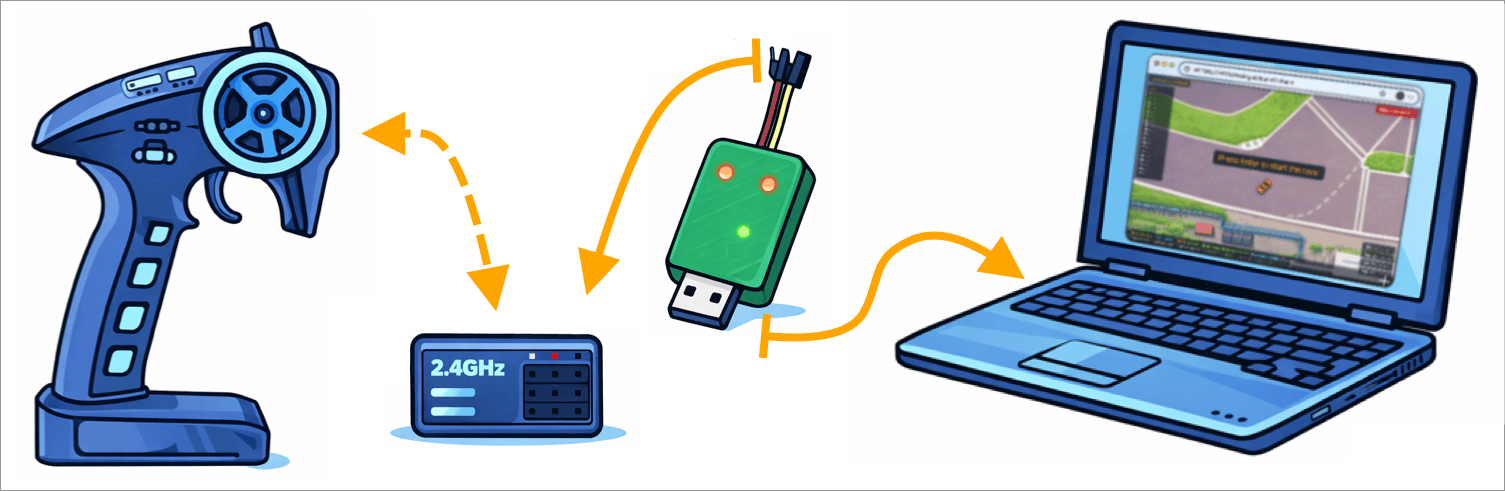
Using a RC Dongle and transmitter
You can use your regular RC transmitter together with a standard receiver.
The RC dongle is connected to the receiver in the same ports normally used for the steering (th) servo('s) and or ESC. The dongle receives the electrical signals (from the small connectors) that would normally go to the servos and converts them into digital data.
The dongle is then connected to a desktop or notebook computer using a USB-C cable.
Once your transmitter is switched on, the calibration software will guide you through the setup process,
allowing the game to correctly interpret the steering and throttle signals for use on the track. The settings on your transmitter can be adjust the amout of steer etc.
System Requirements
- Operating System: Windows 10 or newer, macOS 11 or newer
- Browser: Google Chrome or Microsoft Edge (Chromium-based).
- CPU: Modern dual-core processor or better
- Memory: 8 GB RAM recommended
- Graphics: Integrated or dedicated GPU with WebGL support.
- Display: Minimum resolution 1280 × 720 (Full HD recommended). Works with Ultra Wide screens.
- Audio: Sound output required for countdown, start, and engine sounds
- Input:
- RC transmitter and receiver
- An USB RC dongle (or compatible RC-to-USB interface)
- Keyboard for menu navigation and system controls
- USB: At least one free USB port for the RC dongle
- Storage: Minimal (game runs in the browser; telemetry files are optional downloads)
- Internet: Required for initial loading of the game; gameplay runs locally
What not
- Keyboard steering is not support in this version
- Mobile phones and tablets are not supported.
- It 0.91 there is no support fort calibrating and or playing with a gamepad.
- Safari is currently not supported
- There is no Multi user mode
- Car setup cannot be adjusted
First Time Setup
- Open the start screen or main menu.
- Select Calibrate Controller.
- Follow the on-screen calibration instructions.
- The calibration data is stored locally in your browser.
During calibration, keep the steering and throttle completely still
in the indicated position when you press Enter.
The current input position will be stored as the neutral reference.
Calibration can only be started from the menu.
During a race, recalibration via a key is not possible.
Note: With some transmitters, you may need to use
REV (reverse) on steering or throttle for correct behavior.
You can also fine-tune your transmitter just like a real RC car,
using settings such as D/R (Dual Rate), expo, and endpoints.
Controls
Keyboard
- Enter – Start race / start a new session
- Space – Pause / Resume the game
- ESC – Exit to the main menu
- + / - – Zoom in / out
- 0 – Reset zoom
- R – Reset car and current session
- L – Load a telemetry file
Controller (RC Transmitter)
The game is designed to work with standard RC transmitters and receivers.
The steering and throttle outputs from the receiver are connected to the USB dongle,
just like they would normally be connected to a servo or ESC.
The dongle converts the RC control signals into inputs that can be used by the game.
HFCC dongles are compatible with standard RC transmitters and receivers for RC cars.
- Steering – Analog steering input
- Throttle – Analog throttle input
- Brake – Analog brake input (if supported)
Race Start
- A countdown with three sound signals is played before the start.
- Throttle input is disabled until the third countdown signal.
- After the countdown, a random start signal is played within 2 seconds.
False Start
- Applying throttle before the start signal triggers a False Start.
- Moving the car between the third countdown signal and the start signal is also detected as a False Start.
- A warning message is shown on screen.
- The engine sound is muted immediately.
- Press Enter to restart the start procedure.
Race Flow (After Start)
- The race becomes active with lap and sector timing.
- After the final lap, a finish phase starts with automatic deceleration.
- A game over screen is shown with the race results.
ST (Start position-to-Finish-line Time)
-
Reaction time at the start is an important factor for fast racers.
The ST value, shown separately above Lap 1, allows you to see
your reaction time and the time it takes to reach the start/finish line.
ST is part of the Total Race Time.
Telemetry
-
During each race, telemetry data is automatically recorded in your browser.
When you stop driving, you can choose to save this data and replay it later.
- Automatic telemetry recording during races
- Replay and analysis of driving sessions
- Tracking of speed, steering, throttle, and brake inputs
Audio
- Engine sound
- Countdown sound
- Start signal sound
- Finish sound
- False start warning sound
Data Storage & Privacy
The game runs entirely in your browser.
All data is stored locally on your computer in the browser(1), including controller calibration,
zoom settings and best total race times (BTOT).
Local data is stored using your browser’s built-in local storage feature.
This allows your settings, telemetry data, and best times to be remembered between sessions.
No data is sent to or stored on any of our servers.
The game does not collect, upload, or track any personal or gameplay data.
HUD (On-Screen Information)
- Lap counter – Current lap number and total number of laps
- Sector timing – Individual sector times for each lap
- Speed display – Current vehicle speed
- AVG speed – Average speed per completed lap
- TOP speed – Highest speed reached during the session
- ST – Start-to-Finish time (Lap 0, included in the total race time)
Laps, Sectors & Validation
- Each lap is divided into multiple sectors using checkpoints
- All checkpoints must be passed for a lap to be considered valid
- Missing one or more checkpoints invalidates the lap
-
Checkpoints 1 through 13 turn green internally when passed
(these are used by the system and are not visible to the driver)
- Lap times are stored and displayed on the left side of the screen
- The lap list keeps the most recent laps for reference
Steering & Throttle Indicator
-
A steering and throttle indicator is shown in the lower-right corner of the dashboard.
It moves in real time with your steering, throttle, and brake inputs while driving.
Pause & Resume
- Press Space to pause the game
- While paused, the car stops and engine sound is muted
- Press Space again to resume
Finish & Results
- The race ends after the final lap is completed
- The car automatically decelerates after finishing
- A finish screen fades in
- Total race time is shown
- Best Total Time (BTOT) is compared to previous sessions
- If a new record is set, it is highlighted
- Press Enter to start a new session
Zoom & Camera
- + – Zoom in for precision driving
- - – Zoom out for better overview
- 0 – Reset zoom to default view
- The zoom setting is stored in your browser and reused in future races.
Reset & Recovery
- If you want to restart your race during a session, use the reset function.
- R – Reset the car position and the current session
- Use this if the car gets stuck or after an invalid situation
Disclaimer: This game is provided for training and entertainment purposes only.
All data is stored locally in your browser. No personal data is collected or transmitted.
HFCC Racing is not responsible for any damage, data loss, or misuse resulting from the use of this software.
Questions & Answers
Why does the track use a 2D helicopter view?
The platform is designed as a training tool.
A top-down helicopter view makes the true layout of the track clearly visible
and shows exactly how the car moves through corners and transitions from one
corner to the next.
This view allows you to immediately see the consequences of your actions,
especially when reviewing telemetry data.
From a driver’s-eye or standing position, the track is always seen at an angle,
which visually distorts corner shapes and distances.
Even if the brain corrects for this distortion, the result is a less precise
understanding of the racing line.
When you learn a circuit from a helicopter view first, the brain can easily
translate that knowledge back into a 3D driving perspective.
This makes the helicopter view the most effective and neutral reference for
training, analysis, and consistent lap improvement.
- Why is a gamepad not supported yet?
-
A gamepad uses a fundamentally different way of controlling input.
Gamepads have very short joystick travel, which makes them far too direct.
A small thumb movement already results in a very large steering, throttle,
or brake input. Even a minor correction can cause an extreme steering action.
We are investigating whether limited gamepad support could be added in a
future version purely for fun or accessibility. However, the main goal of
the platform is to train fine motor control using RC transmitters.
- Why is there no keyboard support?
-
Keyboard input is digital: a key is either on or off.
You cannot press a key “a little bit”.
When you press a steering key, it instantly applies 100% steering input.
To compensate, you would have to rapidly tap keys to guide the car through
corners. At the simulated speeds in RCCT, this results in either full throttle
or full braking, making the car physically unstable and unrealistic.
This breaks the driving physics and makes proper control impossible.
Disclaimer – Game & Simulation
This manual and the accompanying game are provided for training, testing, and entertainment purposes only.
While care has been taken in the design of the simulation, the game may contain inaccuracies, limitations,
or behavior that does not fully reflect real-world RC driving conditions.
Results, lap times, telemetry data, and performance indicators should be interpreted as indicative only
and may vary depending on hardware, browser, calibration, and user input.
While we aim to make the simulation as accurate and reliable as possible, we cannot guarantee that all data or outcomes are always fully complete or correct. The game and this manual are provided for guidance and enjoyment, and no rights or claims can be derived from their use.